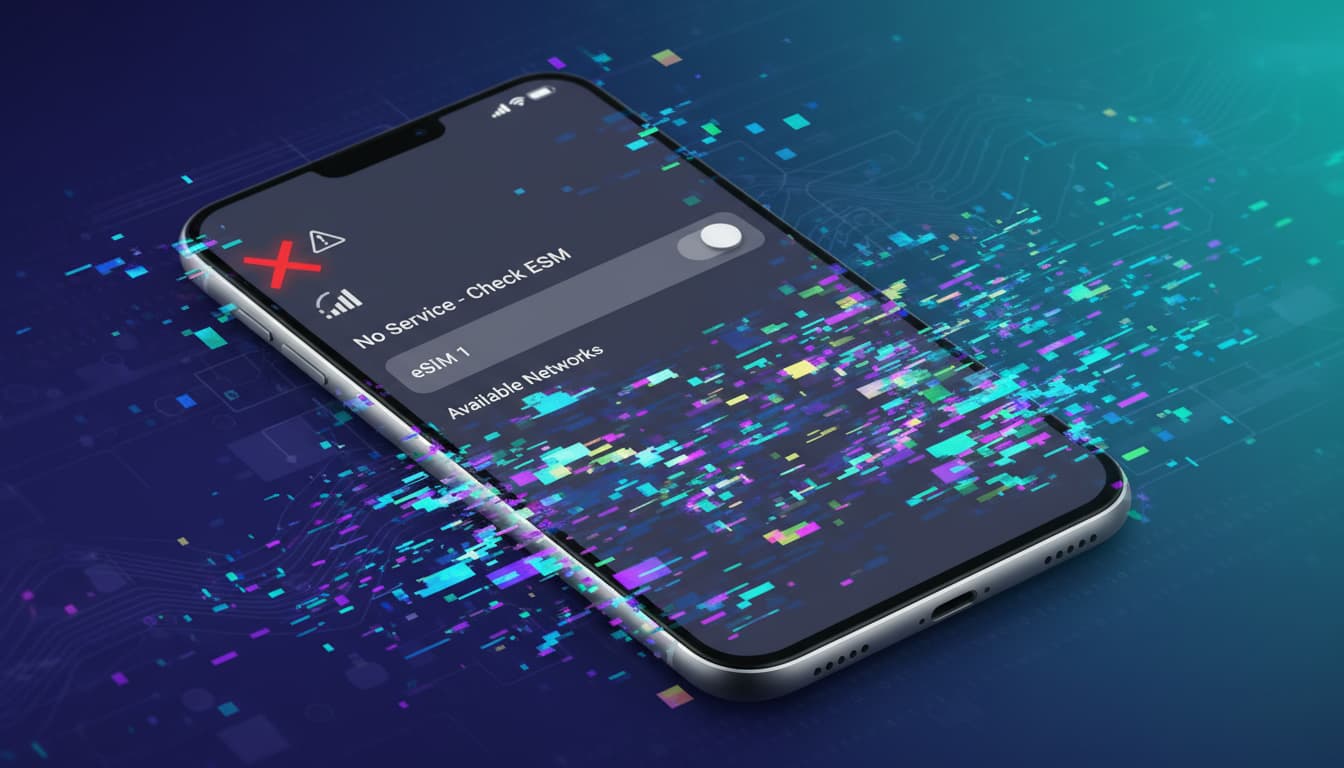

In brief, what you will discover in this article: common causes of network problems with an eSIM, symptoms to recognize, and simple and effective solutions to quickly restore your connection. You will also learn when and how to contact your carrier for optimal troubleshooting.
1. Introduction — why eSIM network issues are common and what the article covers
eSIM network issues often cause frustration, especially when you rely on your phone for work or communication. These difficulties can stem from configuration, compatibility, or network coverage. This article guides you through common symptoms, essential checks, eSIM-specific adjustments, and advanced solutions to swiftly resolve these problems.
2. Common Symptoms of an eSIM Network Issue
2.1 No signal / 'No Service'
A screen showing “No Service” or a complete lack of signal is a classic sign of an eSIM malfunction. This may indicate an activation problem or network incompatibility.
2.2 Mobile data not working
Even if the signal is visible, mobile data may not work. This can be caused by incorrect eSIM configuration or wrong APN settings.
2.3 Error messages during profile activation
Errors like “activation failed” or “invalid profile” often reflect an eSIM activation issue related to a poorly installed profile or a problem with the carrier.
3. Basic Checks (Priority 1)
3.1 Restart the device and toggle Airplane mode
The first simple step is to restart your phone and turn Airplane mode on then off. This often resets the eSIM network management.
3.2 Check carrier coverage and any network incidents
Make sure you are in an area covered by your carrier and check for any ongoing network outages. A local problem can affect eSIM network management.
3.3 Check system and carrier updates
Operating system or carrier setting updates often fix bugs related to eSIM. Ensure your device is up to date.
4. eSIM Specific Settings and Actions
4.1 Verify the eSIM profile is active and selected
In cellular settings, confirm that the eSIM profile is enabled and selected as the primary line for mobile data.
4.2 Delete and reinstall the eSIM profile (iOS / Android) — detailed steps
If the issue persists, delete the eSIM profile and reinstall it via QR code or manual method. On iPhone, this is done in Settings > Cellular, and on Android in Settings > Network & internet. This often resolves eSIM connection errors.
4.3 Manage dual-SIM and data prioritization
For dual-SIM devices, check that the eSIM is prioritized for mobile data. Incorrect settings can cause weak signal or no connection.
5. Advanced Network Settings
5.1 APN and carrier configuration
A misconfigured APN blocks data access. Refer to the APN settings recommended by your carrier and adjust if needed.
5.2 Manual carrier selection and band testing
Try manually selecting your carrier in network settings. This can bypass issues with automatic selection.
5.3 Use field test / diagnostic mode
Some phones offer a network diagnostic mode (field test) to analyze signal quality and detect anomalies.
6. Roaming Issues and Traveling Abroad
6.1 Check compatibility with the local carrier’s eSIM
When traveling, an eSIM network issue can stem from incompatibility with the local carrier. Research ahead to avoid surprises.
6.2 Temporary solutions and local SIM cards
If the eSIM doesn’t work abroad, consider a local eSIM or a temporary physical SIM card to stay connected.
7. When to Contact Your Carrier — Information to Provide
7.1 Essential data (eID, IMEI, screenshots, logs)
For effective support, prepare your eSIM eID, your device’s IMEI, and screenshots of any errors encountered.
7.2 Support message templates
Clearly explain your request by mentioning the eSIM activation issue or network loss, including the steps you have already tried.
8. Scenarios and Solutions for Rare Cases
8.1 eSIM on IoT devices / M2M eSIM
eSIMs used in IoT or machines have specific requirements. Verify compatibility and settings dedicated to these uses.
8.2 Issues after factory reset
After a reset, you often need to reinstall the eSIM profile. Remember to back up your data before performing this operation.
9. Prevention and Best Practices
9.1 Backup profiles, check compatibility before purchase, keep software updated
To avoid problems, always back up your eSIM profiles, verify eSIM compatibility with your device and carrier, and keep your software updated.
10. Conclusion and Useful Resources
eSIM problem solutions involve simple checks, precise adjustments, and sometimes help from your carrier. For deeper learning, check the complete guide on how to install an eSIM and discover the best options for traveling with an eSIM at best travel eSIM. If difficulties persist, official resources like Apple Support or Google Pixel Phone Help offer advice tailored to each device.
For a consistently reliable connection, also consider using a secure mobile VPN that guarantees privacy and unrestricted access—an ideal complement to your eSIM. Discover our recommendations for VPN apps compatible with eSIM on Skyda.co.