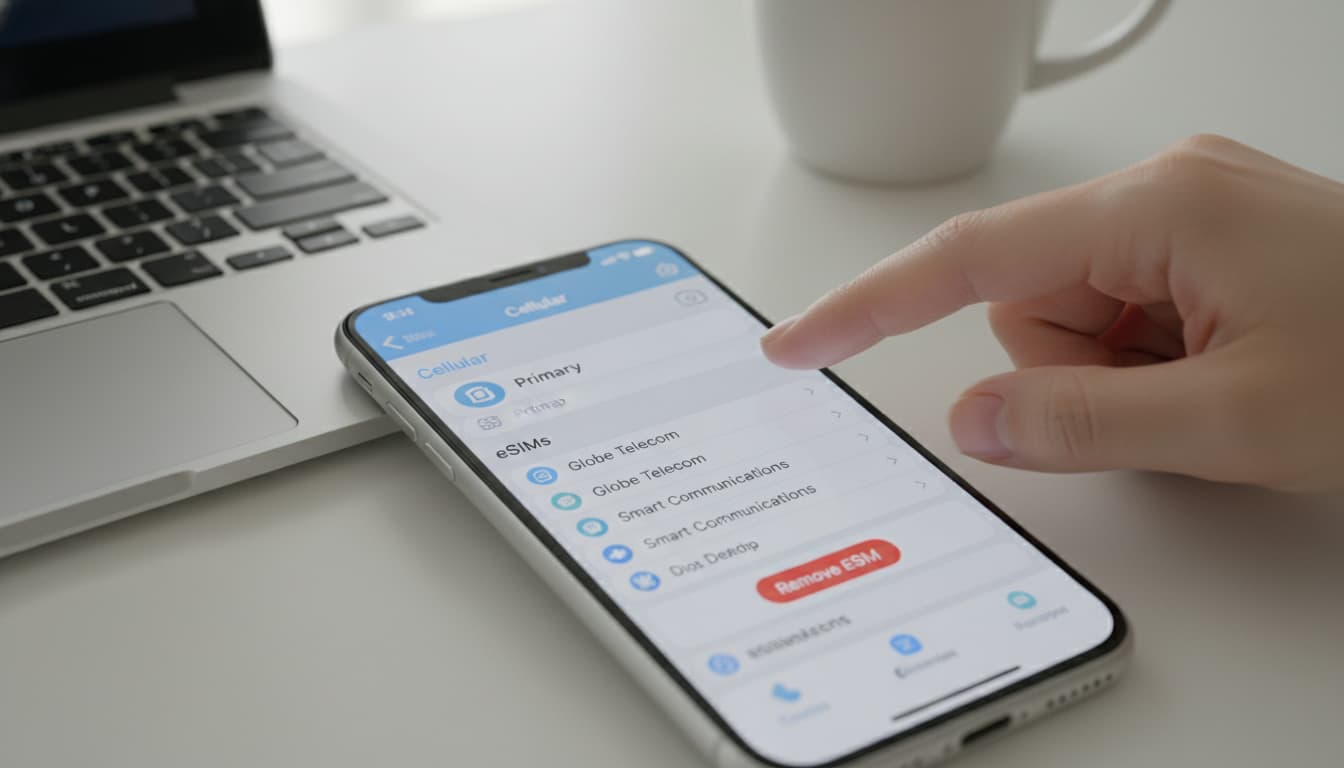

In short, what you will learn in this article: how to delete an iPhone eSIM easily and safely. You will find the precise steps to uninstall the eSIM card, precautions to take before deletion, and solutions in case of issues. This practical guide helps you manage your eSIM stress-free.
1. Introduction — why and when to delete an eSIM on iPhone
Deleting an iPhone eSIM becomes necessary when you change operators, want to free up space for a new eSIM, or simply disable an inactive line. Managing eSIMs on iPhone is flexible, but you need to follow a clear method to avoid service interruptions or data loss.
This operation is especially useful in daily life where staying reachable and connected is essential. To better understand this technology, you can check our article on what an eSIM is.
2. Prerequisites and precautions before deleting an eSIM
Before proceeding with deleting the eSIM on iPhone, it's important to verify some points to ensure a smooth transition.
2.1 Check iOS version and compatibility
Make sure your iPhone is updated to the latest iOS version, as Apple regularly improves eSIM management. Deleting an eSIM requires iOS 12.1 or later, but the latest version ensures better stability and security.
2.2 Backups and checklist (number transfer, iCloud backup)
Before removing the iPhone eSIM card, remember to:
- Back up your iPhone via iCloud or iTunes.
- Transfer your number if changing operators.
- Verify your new eSIM is ready to be activated.
- Note important information related to your plan.
These steps prevent any data loss or prolonged service interruption.
3. Difference between disabling and deleting an eSIM
Disabling the iPhone eSIM means temporarily turning off the line without deletion, allowing quick reactivation. Deleting an eSIM completely erases the profile, requiring reinstallation via a new code or QR.
3.1 Impact on reactivation and portability
Deleting the iPhone eSIM line can complicate portability if you don't have activation codes. Disabling is reversible and doesn't delete the profile data. For more details, see how to manage eSIM on iPhone in our full guide.
4. Method 1 — Delete an eSIM directly from iPhone (step-by-step)
Deleting the eSIM on iPhone is simple via settings. Here are the detailed steps.
4.1 Go to Settings > Cellular / Mobile Data
- Open the Settings app.
- Select Cellular or Mobile Data depending on your iPhone language.
4.2 Choose the eSIM plan and tap 'Delete Cellular Plan'
- In the cellular plans section, locate the eSIM you want to delete.
- Tap the concerned plan.
- Scroll to the bottom and tap Delete Cellular Plan.
- Confirm the deletion when prompted.
This action removes the eSIM from your iPhone without affecting your other data.
4.3 Verify deletion is effective
To check that deleting the eSIM on iPhone worked:
- Return to Settings > Cellular.
- Ensure the eSIM profile no longer appears in the plans list.
- Confirm the line is inactive and you can activate a new eSIM if needed.
This method is recommended by Apple and detailed on their official support.
5. Method 2 — Have the eSIM deleted via your carrier
In some cases, it’s better to ask your carrier to delete the eSIM.
5.1 When to contact the carrier and what information to provide
Contact your carrier if:
- You cannot delete the eSIM directly from the iPhone.
- You want to permanently terminate the associated line.
- You need official confirmation of deletion.
Have your phone number, customer ID, and possibly your iPhone’s IMEI ready.
5.2 Deletion timing and confirmation from the carrier
Deletion timing can vary by carrier, from a few hours to several days. Once confirmed, you often receive an SMS or email. This method ensures the line is deactivated on the network side.
6. Common issues and solutions
6.1 eSIM greyed out or stuck — actions to try
If the eSIM appears greyed out or stuck in settings:
- Restart your iPhone.
- Check for iOS updates.
- Try disabling then re-enabling the line.
- As a last resort, contact your carrier.
6.2 Error message when deleting — quick troubleshooting
If an error occurs during deletion:
- Check your network connection.
- Ensure the eSIM isn't in use (calls, data).
- Restart the iPhone.
- If persistent, reset network settings.
7. Restore or reinstall a deleted eSIM
If you deleted an eSIM by mistake or want to reinstall it:
- Use the QR code provided by your carrier.
- Manually enter the activation code.
- Use your carrier’s dedicated app if available.
These options allow you to quickly reactivate your eSIM plan.
8. Conclusion and final recommendations
Deleting an iPhone eSIM is a simple operation but requires caution. Follow official steps to avoid service interruptions. Don’t hesitate to back up your data and contact your carrier if in doubt. To learn more, discover how to install an eSIM or understand the difference between eSIM and traditional SIM card.
For a complete and reliable guide, refer to Apple support which remains the safest source to remove an eSIM on iPhone.
Recommended affiliate links: